
One of the simplest methods of enhancing quality of your video calls, online meetings, live streams, and creating your content is Learning how to Use Iphone As Webcam Mac. Although Mac computers have inbuilt cameras, the camera system in the contemporary iPhones is much more advanced. You can view higher quality video, better with low light conditions, more accurate color snapshots, and business-like appearance by not having to buy another external Web camera, as, with your iPhone as a webcam, you can see better.
Apple has made it easy through Continuity Camera, which enables the compatible iPhones to operate as wireless webcams to mac computers. Flying the web on your phone as a webcam, attending virtual meetings, online lessons, creating a tutorial, or streaming content, a noticeable difference in how you look on camera can be achieved simply by using your iPhone as a webcam.
This guide will show you how it works and what you need to get started, how to set it up, hints to troubleshoot and how to get the best out of the video quality.
What Is a Continuity Camera?
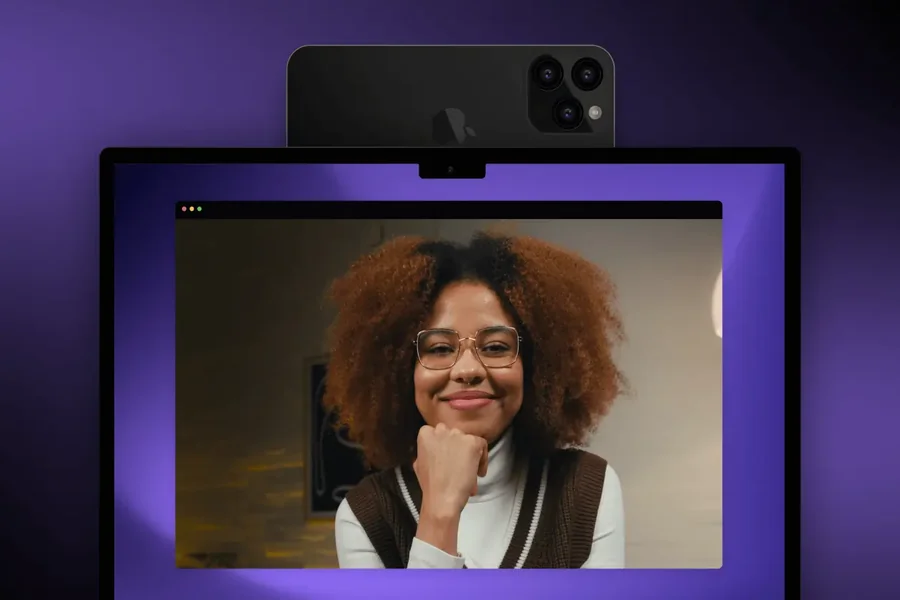
Continuity Camera is an option within Apple that enables an iPhone to act as a Mac webcam.
Rather than the inbuilt camera on the Mac, applications are automatically determined to use the iPhone camera system to deliver video instead of the built-in Mac camera.
Connection is most likely to be wirelessly, and easy to set up as well as eliminates cables on your work desk.
Since an average iPhone has a higher quality image processing alongside, autofocus, high-resolution sensors and better low-lights, the quality of the video is sometimes far superior compared to a built-in web-cam produced by many laptops.
Continuity Camera also is capable of a number of advanced video features.
Portrait mode provides a perfectly soft background to maintain the focus on you.
With the Center Stage feature, this automatically pans the camera to ensure that you always remain in center.
During demonstrations or presentations, you can have your face and your desktop on Desk View.
The iPhone has the capabilities to make it a powerful and useful webcam solution in numerous applications, both professional and personal.
Requirements to Use an iPhone as a Webcam
Your devices need to be checked against the compatibility criteria of Apple before arranging everything.
Your iPhone and Mac have to be Continuity Camera compatible.
The same Apple ID should be used to log in to your devices.
Both devices should have Wi-Fi and Bluetooth enabled as it is used to set up the wireless connection.
Devices must not be too far apart depending on the desired distance of good communication.
You must also have an unlocked and sufficiently charged iPhone to be able to have longer video sessions.
Maintaining both the devices with the newest operating systems will also be needed to guarantee a high degree of compatibility and accessibility to the latest features.
One of the favorite things these users like to do is to plug the iPhone in power in case they have got a long meeting which will drain the battery.
These are the basic requirements which contribute towards a smoothing out of the setting up process.
How to Set Up Your iPhone as a Webcam
Continuity Camera is extremely easy to set up.
Start set your iPhone close to your Mac.
Natural camera positioning involves many users having a special mounting accessory which places the iPhone atop the Mac display to form a natural camera angle.
Start a video calling or recording app on your Mac that is supported by the live chat.
Upon accessing the application, the iPhone should automatically present itself as an active camera source, in case both devices are compatible with the required requirements.
As a favored camera, pick your iPhone.
Just in a few seconds, the application takes over the rear camera of the iPhone rather than the web camera provided by the Mac.
Then you can put the phone in the most flattering position, and adjust the lighting so as to get even better results.
When set, future links will normally occur automatically as the devices get into range.
This uninterrupted system is one of the most considerable benefits of the Apple integrated system.
Benefits of Using an iPhone as a Webcam
Image quality is the most noticeable.
Recent iPhones are taking much sharper videos and their coloring and default range are much improved without using many laptop webcams.
The performance in low light is also significantly higher, which aids in preserving clarity in video when making calls at night or in the rooms with insufficient lighting.
This is possible with autofocus which holds your face in focus even when you move a little during presentations.
Portrait mode will produce a more professional look as it gently blurs the background.
Center Stage tracks you with its automatic movement, you can stand, show products, or move freely without going out of the frame.
Teachers, artists, and presenters in particular will find Desk View very handy as you can have your face and workspace at the same time.
Wireless connectivity minimizes cable disorder and makes it easy to organize the desk.
To creators of content, better quality of videos usually require no additional cost of getting a standalone webcam which can cost hefty money.
Continuity Camera is overall a superb combination of convenient and professional operation.
Read More: Ikea Smart Home Matter Products for a Connected Home
Tips for Better Video Quality and Troubleshooting
One of the most crucial aspects to a great video quality is good lighting.
A light source right before you should be used, as opposed to behind you to minimize shadows.
Even attach your iPhone to a steady position at eye level or else it will come out to look more real.
The lens of the camera should always be kept clean in order to enhance the clarity of the image.
When you cannot be recognized by the Mac, make sure that both gadgets share the same Apple ID, and that Bluetooth and Wi-Fi are on.
To troubleshoot the temporary connection problems, a restart of both devices is frequently helpful.
Keeping the updated software can also ensure compatibility.
In lengthy meetings, the iPhone can be plugged to an electric socket and the battery charge is managed.
During high-resolution video streaming, it is possible to enhance the overall system performance by closing unnecessary applications.
Choosing trial will help you make sure your system is in good operation before big presentations and limp up to the deadline with technical issues.
Final Thought
One of the most efficient methods to enhance the quality of video calls, online meetings, creating content, and live streaming is Learning how to Use Iphone As Webcam Mac. This is also facilitated by the Continuity camera offered by Apple which enables its compatible iPhones and Macs to communicate without the need to use complex software further suggesting the use of additional devices.
The new iPhones have a better camera system, which provides higher resolution and better low-light cameras, as well as professional options like Portrait, Center Stage, and Desk View. When used in cooperation with appropriate lighting and the good positioning of the cameras, these abilities produce a high standard and professional look to practically all forms of video interaction.
You can use your iPhone as a webcam, whether you are working remotely, teaching, producing digital content, or just want to have a better video quality when video conferencing with family and friends, as its application is easy and convenient and takes full advantage of the presented integrated ecosystem offered by Apple.
FAQs
Can I use my iPhone as a webcam for my Mac?
Yes. Apple supports this feature through Continuity Camera on compatible iPhone and Mac models.
Do I need extra software?
No. Continuity Camera is built into compatible versions of iOS and macOS.
Does the connection work wirelessly?
Yes. The feature primarily works over Wi-Fi and Bluetooth without requiring a cable.
Can I still charge my iPhone while using it as a webcam?
Yes. Connecting your iPhone to power during long video sessions helps prevent battery drain.
Which applications support Continuity Camera?
Many popular video conferencing, streaming, and recording applications automatically recognize the iPhone as a webcam.
Why isn’t my Mac detecting my iPhone?
Check that both devices use the same Apple ID, enable Wi-Fi and Bluetooth, keep them close together, and install the latest software updates.
Is using an iPhone better than the Mac’s built-in webcam?
In most cases, yes. Modern iPhones offer higher-quality cameras with improved sharpness, color accuracy, autofocus, and low-light performance.