
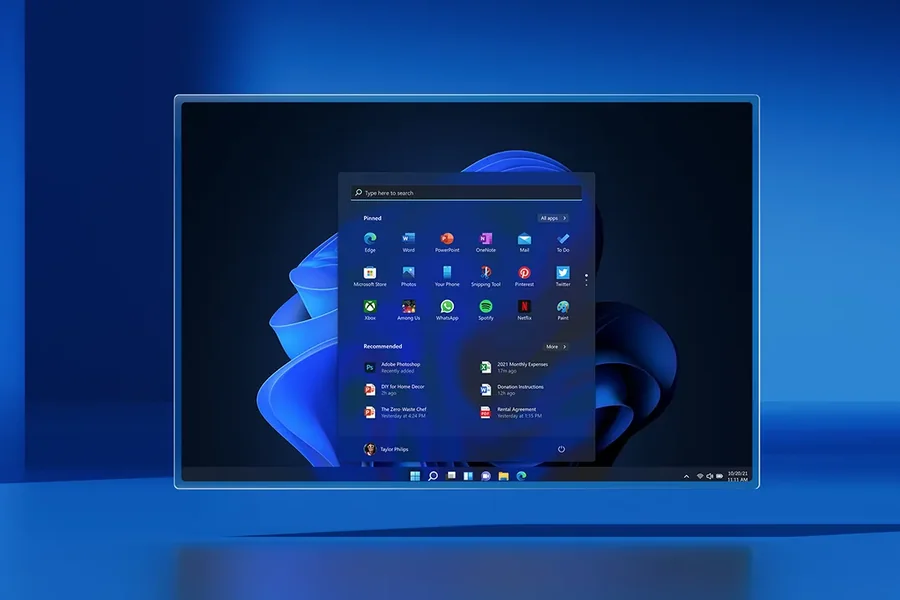
One of the most visible additions to the new operating system of Microsoft is the Windows 11 Taskbar. The taskbar provides a cleaner look with its center-aligned icons, updated interface and provides an easier scale to use as the main point of opening applications, controlling active windows and reaching vital system resources. Despite some customization features of previous iterations of windows being altered, the windows 11 Taskbar offers both users and work-related professionals with an efficient and clean working environment.
Regardless of what you do on your computer be it working, playing games, studying or entertainment, learning how to use the taskbar can greatly enhance your productivity. Knowing the features of it, customizations, shortcuts and how to troubleshoot it enables you to be able to do more with your windows.
This tutorial tells you all there is to know about the windows 11 taskbar, its functionality, preferences, customization and some tips on how to use it in your day to day tasks.
Understanding the Windows 11 Taskbar
Taskbar has continuously been a part and parcel of windows operating system.
Under Windows 11, Microsoft remodeled it into a more modernized look in tune with the general visual scheme of the operating system.
The Start button is now centrally positioned by default with pinned applications and provides a balanced and minimal look.
The taskbar has a number of functions.
It gives a fast launch of programs most frequently used, shows programs currently in use, gives a notification and by one click requires ones to operate between open windows.
Displayed on the right side of the taskbar is the system tray including network status, battery state, sound volume as well as date and time just to mention a few of the other background services.
The overall design is a bit less sophisticated than its predecessors, but the taskbar is one of the most significant productivity features in Windows 11.
Knowing its layout assists users to go through the operating system more productively.
Key Features of the Windows 11 Taskbar
The new redesigned taskbar has a number of convenient features that enhance the daily use of a computer.
Pinned applications enable users to have their favorite programs on the list so that they can access them easily without searching on the Start menu.
Task View gives a preview of all elements of open windows and helps you organize various projects more effectively using Virtual Desktops.
The Widgets provide easy access to the weather, news, calendar, sport scores, and customized information.
The Search feature enables users to find applications, files, settings and online information very fast, right on the task-bar.
Quick Settings allow integrating Wi-Fi, Bluetooth, volume, brightness, battery settings, and other common settings in a single, convenient display.
The Notification center shows a reminder, calendar events, emails and application messages as it assists a user in staying on track with close to the date events.
To improve these features, Microsoft is constantly updating Windows with new changes and enhancing them depending on user feedback.
Collectively, those, together with others, are useful to make the desktop experience faster and more efficient.
Customizing the Windows 11 Taskbar
Despite Windows 11 having fewer customization controls than the previous windows versions, there are still a number of ways that users can customize the taskbar to be useful to them.
Another change that is most popular is taskbar alignment.
The default, centered placement of the Start menu and taskbar icons can be reconfigured through the Personalization settings to the conventional left side placement.
Depending on one’s choice, applications can be pinned or unpinned, so that one can more easily get to commonly used software.
Taskbar actions can be used also to regulate the hiding of the taskbar, the badge notification, and display of icons as well.
System tray is customisable and selection of the background applications shown beside clock can be made.
Color customization enables the taskbar to be colored to your favorite windows theme.
Effects of transparency give it a contemporary look and preserves the readability.
Even though the taskbar is now permanently attached to the lower part of the screen, such customization capabilities also enable users to design their own workspace, which fits their unique requirements.
Productivity Tips Using the Windows 11 Taskbar
It will rip many benefits to become familiar with a number of tricks which will assist to be much more productive every day.
Pinning enables you to use most commonly used applications with just a single click.
It is also possible to arrange pinned applications in a manner in which you desire them to be displayed in your daily activities.
The keyboard shortcuts can be used with the taskbar to navigate even faster. An amalgamation of both methods spearheads the saving of valuable time in the work process.
Task View helps to organize different projects, to separate them into different Virtual Desktops.
Notification management is more time-saving and less distracting because it allows you to concentrate on significant messages and minimize annoying notification.
Quick Settings provide an opportunity to be engaged in the mode of tuning some of the typical controls of the system without entering many menus.
Windows 11 also have options to display the taskbar on an additional monitor, which will enable you to use your apps easily, without walking long distances to get them.
Arranging your taskbar will help clean up your desktop, and will also enable you to be more effective in important tasks.
Even minor organizational changes can result in productivity bumps in the long-term.
Read More: Ikea Smart Home Matter Products for a Connected Home
Common Windows 11 Taskbar Problems and Solutions
Similar to any software functionality, the taskbar can sometimes malfunction.
When the taskbar ceases to respond, most of the time, a termination of windows explorer via the task manager will solve the issue without necessarily having to restart the system.
Missing icons can be due to temporary Linux bugs, or slow loading of applications.
The problem is normally resolved by re-launching the impacted application or updating windows.
Taskbar search may stop functioning, but it can be fixed by re-rebuilding the search index, or by updating the windows with outstanding updates.
Continuous updates to the operating system lead to some of the performance issues.
Keeping drivers up-to-date and patching them with the current Microsoft patches are some of the measures that will help in maintaining the systems stable.
Sometimes taskbar behavior can be interfered with by third-party customization software.
Unanticipated display or functionality may be resolved by killing non-compatible utilities.
The Windows 11 Taskbar is easy to run with frequent system maintenance, updates and using the applications properly.
Final Thought
One of the most important aspects of the operating system that has actually been considered by Microsoft despite the remodeled appearance and the ease of updating it is Windows 11 Taskbar. It offers fast access to applications, alerts, search engines, system controls, and multitasking that assist users to be more effective in their day-to-day activities.
Although some of the more advanced windows users may feel a lack of certain customization tools of the older windows versions, the new interface is clean, slim and user friendly and continues to improve with regular updates. Learning to personalize the taskbar, arrange applications, take advantage of productivity options, and troubleshoot troublesome problems, you can make your Windows 11 experience quicker and enjoyable.
Whether you use your computer to work, study, play video-games or simply browse, knowing how to utilize the windows 11 Taskbar can enable you to feel stronger, easier and more confident than ever using your computer.
FAQs
What is the Windows 11 Taskbar?
The Windows 11 Taskbar is the primary navigation bar that provides access to applications, the Start menu, system notifications, and important operating system controls.
Can I move the taskbar to the top of the screen?
No. Windows 11 currently supports only a bottom taskbar through official Microsoft settings.
Can I move the Start menu back to the left?
Yes. Taskbar settings allow you to change icon alignment from the center to the traditional left position.
What is Task View?
Task View displays all open windows while allowing users to create and manage multiple Virtual Desktops.
Why is my taskbar not responding?
Restarting Windows Explorer through Task Manager often resolves temporary taskbar issues.